most of the time i do not encourage folks to wander around and play in the registry, but occasionally you HAVE to, for example when your content advisor goes nuts on you and wont let you surf.. *BTW* i encourage everyone to go to that page and click file, save as.. and save that page to a disc.. cause when you need it. you wont be able to get to it... so, anyway, in case you ever have to .... lets learn how to make some changes in our registry...... lets pretend we wanted to get rid of the ads on , oh... lets say Mess*Y*..... now remember you should not do this. that would violate the
TOS, this is purely an exercise to demonstrate how to edit your registry. remember to back up your registry before you play in it! and remember, examples posted on nhyrvana are for educational purposes only. feel free to search the web for other info and that the use, installation, or application of any of the materials, hints, advice here is solely at the risk of the user. nhyrvana will not be held responsible for any resulting damages, loss or other results due to the usage of the material presented in this educational material.. (skip to the bottom if you want the easy way 
| first close mess*Y* and make sure its not in the system tray...> NO NO!! YOU DO NOT WANT IT DOWN THERE>>>oh. wait. your not doing this.. but you would not want the program you are editing open
|  | | once you have closed messenger, click your start button, and type in regedit | 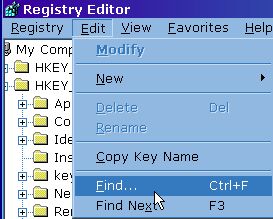 when it opens up... the fastest way to find where you need to would be to click FIND, | 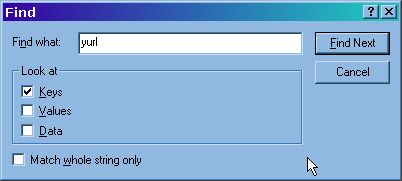 | | that will open up a search box, and you can search by key, value, or data lets *oh for example* look for the KEY only for yurl should drop you at HKEY_USERS\. DEFAULT\Software\ Yahoo\Pager\yurl | HKEY_USERS\.DEFAULT\Software\Yahoo\Pager\yurl <<<<
| 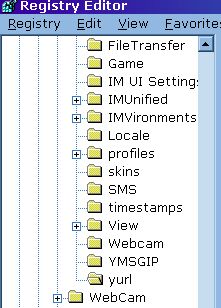 in this case, the key we were looking for was found at my computer, then click the plus sign to hkey_current_user, find plus sign to software, then click the plus sign and find yahoo, then in the pager folder.... then the yurl folder this is IMPORTANT! | 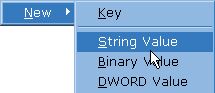 the items you see with the little AB icons are registry keys. lets say you don't have one called Chat Adurl the items you see with the little AB icons are registry keys. lets say you don't have one called Chat Adurl | * pouty face* then you would just right click the screen, and select NEW, STRING value.... and enter Chat Adurl.
| 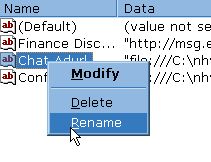 if you had a key like that, and want to change it... you could right click the registry key, and select modify. then enter something like.... file:///C:\blank.gif this is the image that will show now if you were to do all of this exercise... | if you wanted to use a one pixel by one pixel image.. just right click where it says file:///C:\blank.gif and select save target as, and drop it in your c drive. or use whatever other images you have on your computer...when done, *if* one were to do this.... might look something like below.... you could also repeat the exercise, to test your skills and understanding of this exercise by doing the same for Conf Adurl to test your skills :-) notice that it adds a border some.. so you do want to keep the image NARROW... 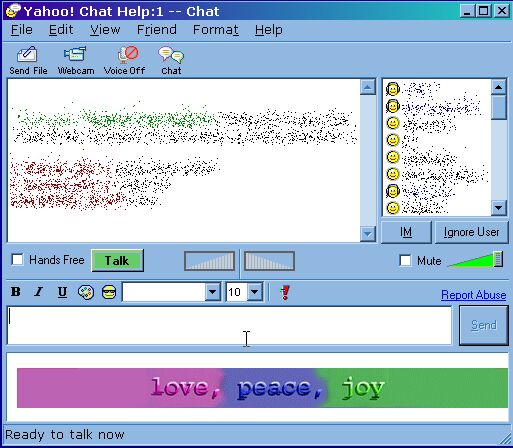
if you get a large page can't be displayed.. heh. you have a typo.. DOUBLE check what you entered, it is case sensitive and you must have images where you point too.. feel free to compare your registry to this sample image /reg-edit-help.jpg
|
|
images to use along with quickload keys found here... now to undo this little test, one would simply.... *hmmmm* will have to figure out how to do that won't we...... but since you didn't actually do this... then nothing to worry about. *right* but if you accidentally did effect the changes, and cant figure how to reverse them, just uninstall the program and reinstall. some sample images, just right click, select save as, and save to C:\ drive for this example. you can open them in a graphics program and customize them with text too ... if you were to run into a problem.. you could just click the pic you want to use on this page, and get a help file. save the file you get to desk top. MAKE sure YOU save the image file for the help file TO C:\. Then right click and select MERGE for these little help file you get if you click the image. ( you can also right click and select EDIT.. and examine the help file too, strictly for educational purposes. oh... and if one were to need to practice this lesson again.... you could find an image that's about 300 pixels tall, and 200 pixels wide... and drop it in c drive... then.... make a new key... in the same place.. called Change Room Banner , then do as before and point to image. file:///c:\imagename.jpg . like poop.gif.. have fun.. want to ditch the cam ads? download this file. unzip to desktop, move the blank.html file to c\ drive with the pics. THEN right click and select MERGE on the webcam.reg file. restart messy. no more cam ads. pass this page on! |
|
Content and images copyright ©2000-2004 by Nhyrvana ~violators will be spanked disclaimer/ terms of use: the use, installation, or application of any of the materials, hints, advice here is solely at the risk of the user. this is a personal site, not a business site. nhyrvana will not be held responsible for any resulting damages, loss or other results due to the usage of the material presented here. if you have any doubts, feel free to search the
web for other information. use of this site indicates agreement with these terms..... feel the need to help support nhyrvana? then you can donate a dollar
|


